Choose the media-volume limit first
- Open Volume Lock. Complete the permission and background-operation steps shown for your device.
- Find Media, Music. Expand the channel card on the main screen to see its mode controls.
- Select Range. Move the upper handle to your chosen maximum and the lower handle to your minimum. Choose Locked instead if you want one fixed level.
- Play a video or game and test the volume buttons. Check that media volume stays within, or returns to, the configured range while protection is active.
Start with the channel used by the child's videos or games. Media limits do not automatically set the same limits for calls, alarms, or every other channel. The full volume limiter guide explains the difference between a range and a fixed lock.
Protect your settings with Parental Lock
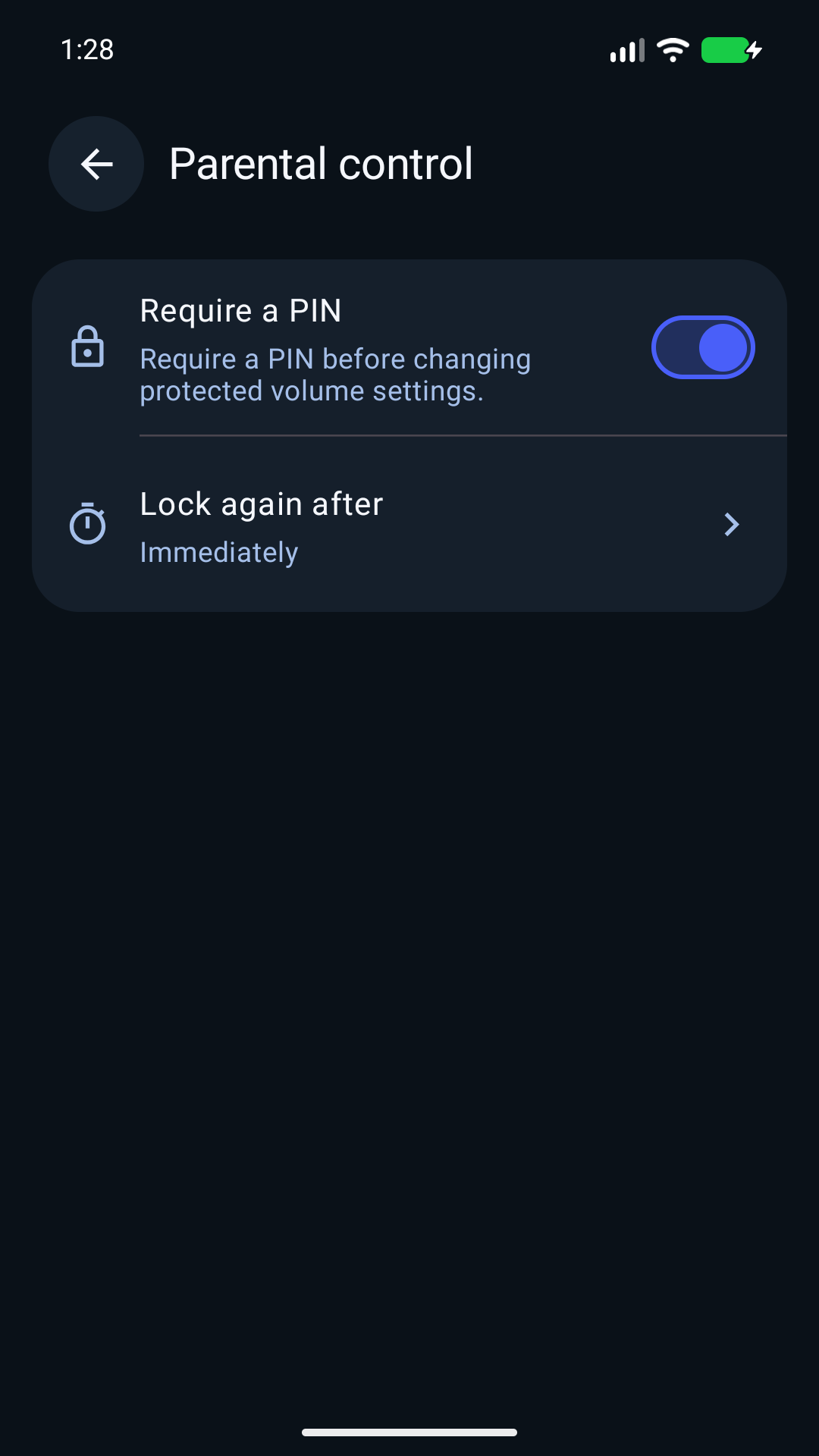
- Open Settings → Parental control.
- Turn on Require a PIN.
- Create your PIN, then enter it again to confirm. Keep the PIN to yourself.
- Open Lock again after. Choose Immediately to require the PIN again after you leave the app, or choose the delay that suits your use.
- Leave Volume Lock and open it again after the selected delay. Confirm that the PIN screen appears before protected settings can be changed.
On supported devices, biometric unlock can also be available. The PIN requirement protects settings inside Volume Lock; it does not lock every Android setting or prevent the app from being stopped or removed.
Check the setup before sharing the device
- Try the actual video or game the child will use, including its own volume controls.
- Test again after leaving Volume Lock and after switching the screen off and back on.
- If headphones or a Bluetooth speaker will be used, connect that accessory and check the result with it.
- Confirm that the intended profile is active. A profile change can apply a different set of saved volume settings.
For a child's saved profile, open that profile's Volume settings, finish the channel edits, then save the profile itself. Main-screen changes to a non-Main profile are temporary for that activation; they do not replace its saved settings. Custom-profile activation requires Premium.
If the volume goes beyond your limit
Check the active channel and profile, then review Settings → Background operation. Device battery restrictions can interrupt protection. Some Android devices link audio channels together; the app's calibration helps identify the controls available on your phone.
Choose levels for your device and listening situation, and check the result yourself. Volume Lock controls Android volume settings; it does not measure sound at the listener's ear.
See the shared-device FAQ, learn to set up a Bluetooth profile, or contact support if you need help.