Set a media-volume limit
- Open Volume Lock. Follow the in-app permission and background-operation prompts for your device.
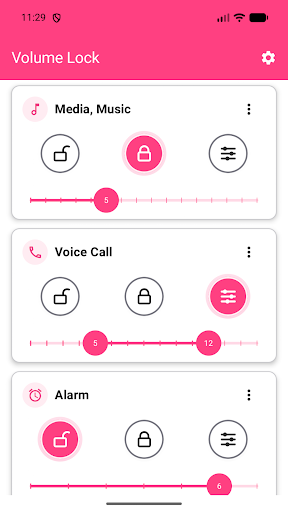
- Find Media, Music on the main screen. Expand its card if the mode controls are hidden.
- Select Range. In the icon-button layout, this is the sliders icon beside the open and closed padlocks. Other control styles show the mode name.
- Set the upper handle to your maximum. Set the lower handle to your minimum. If you only need an upper cap, leave the lower handle at the lowest value the app allows.
- Test while music or a video is playing. Press volume up and check that the selected media channel stays within, or returns to, your configured range while protection is active.
- Test background operation. Leave the app and repeat the check. This helps confirm that your device keeps protection running.
Choose a range or a fixed level
- Range: allow adjustment between your lower and upper limits.
- Locked: hold the selected channel at one chosen level.
- Open: allow normal volume adjustment for that channel.
The app may display levels as numbers or percentages. Available steps depend on the channel and device. A limit for Media, Music does not automatically configure every other audio channel.
Keep limits in your saved profiles
If you use profiles, edit the profile's Volume Settings, then save the profile. Main-screen changes to a non-Main profile are temporary and do not replace its saved starting settings. Changes made to Main are saved for Main.
If protection stops or a channel behaves differently
- Check that protection is active and the selected channel is in the intended mode.
- Follow Settings → Background operation in the app. Android battery restrictions can interrupt background protection.
- Check the audio channel that is actually changing. Devices can link some channels; use the app's calibration and channel settings when needed.
- For Ring, review Sound, Vibrate, Silent and Do Not Disturb behavior. These settings can affect when a ring-volume lock applies.
Repeat your test with the apps and connected audio devices you use. Results can vary by manufacturer, Android version, permissions and background restrictions. See the background-operation guidance or contact support if the problem continues.
Using a shared phone or tablet?
Set the channel limits first, then use parental controls to protect Volume Lock settings with a PIN and biometric unlock where supported. Follow the kids' volume-limit and PIN guide for the full setup, checks, and device limitations.
For accidental button presses where you want a single fixed level, follow the volume-button lock guide. Explore all Volume Lock features.