Before you start
Pair your headphones, speaker, or car audio in Android's Bluetooth settings first. Turn Bluetooth on and check that the accessory works for audio with your phone. Grant the Bluetooth permission requested by Volume Lock so it can show the available paired devices.
Bluetooth profile conditions use supported audio connections. Pairing a device alone does not make the condition match; the selected device needs an audio connection. Compatibility and volume behavior vary by phone and accessory.
Create a profile with a Bluetooth condition
- Open Profiles. Use Settings → Profile management, or the profile card's arrow on the main screen.
- Choose Add profile (+). A new custom profile starts with no activation conditions.
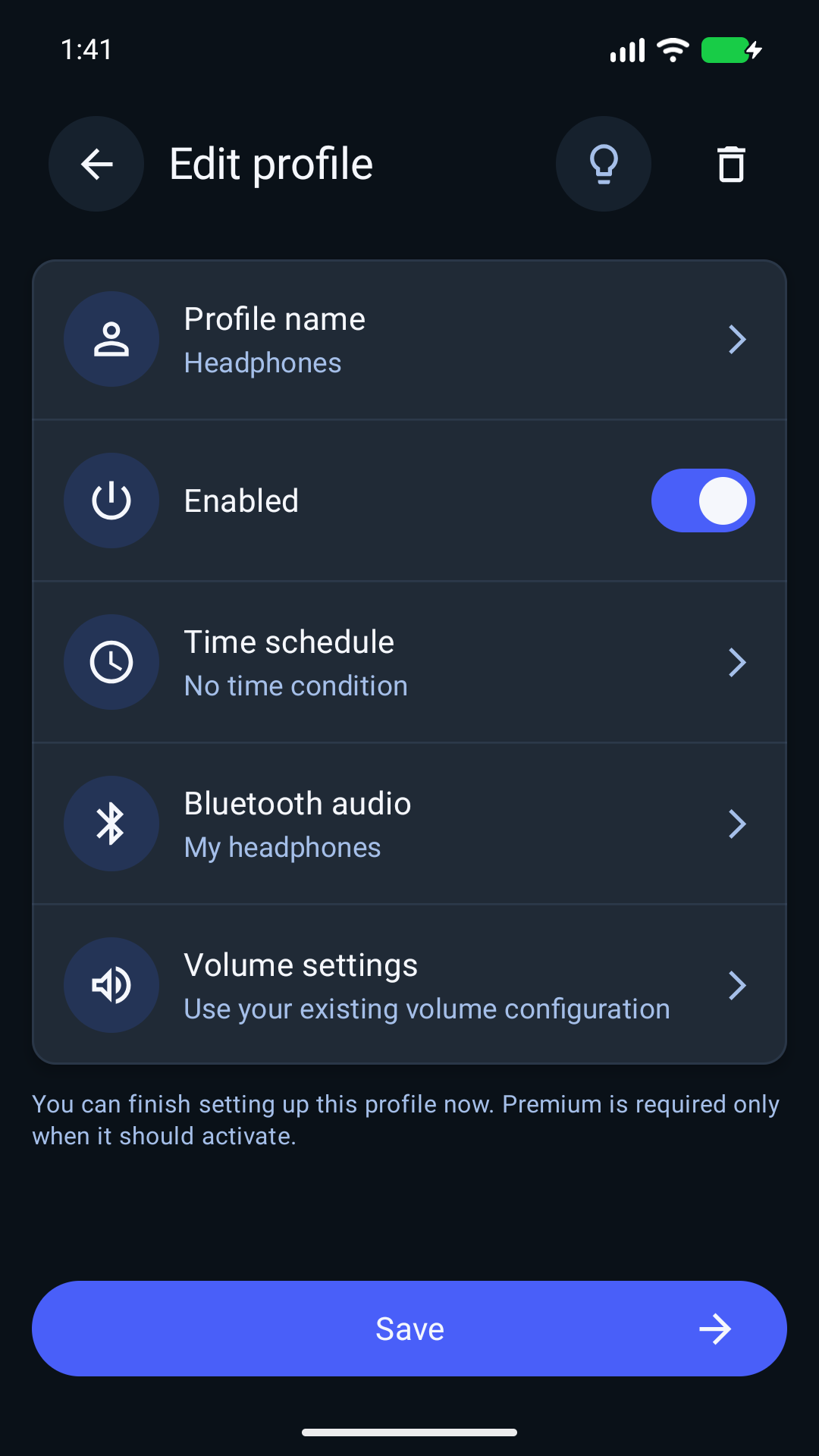
- Open Bluetooth audio. Choose Add Bluetooth condition, select your paired audio device, then choose Done to return to the profile. If you select several devices, an audio connection to any selected device can satisfy the Bluetooth condition.
- Open Volume settings. Choose the levels, fixed locks, or ranges you want this profile to use. For music and videos, start with Media, Music. Finish the volume editor with Done.
- Choose Create profile. This saves the new profile and its settings.
- Name the saved profile. Open it from the Profiles list, choose Profile name, enter a name such as Headphones or Car, finish the name edit, and choose Save.
- Check activation is enabled. Keep the profile enabled and turn on Profile management on the main screen. Premium must be available for a custom profile to activate.
You can create and configure the profile before upgrading. Saving a profile does not by itself mean it is currently active.
Test with your headphones or car
- Connect the selected accessory for audio and confirm the connection in Android.
- Check the active profile shown in Volume Lock.
- Play audio and test the channel's selected level or range.
- Disconnect the accessory and check which profile becomes active next.
If no other eligible profile matches, Volume Lock uses Main. If several profiles match, the highest-priority eligible profile wins. In the Profiles list, drag the handles to set that priority.
Combine Bluetooth with a time schedule
A custom profile can also have a time condition. Use OR when either the time condition or the Bluetooth condition should be enough. Use AND when both must match. For example, AND can restrict a headphones profile to your chosen evening schedule.
A custom profile with no conditions is always eligible while profile management and the profile are enabled, subject to Premium and priority. Keep a Bluetooth condition if you want it to depend on the accessory.
If a profile does not activate
- Check that the accessory is paired, Bluetooth is on, and the selected device is connected for supported audio.
- Allow the Bluetooth permission requested by the app. If the device was unpaired or replaced, choose it again in the profile's Bluetooth condition.
- Check Profile management, the profile's Enabled switch, Premium access, and higher-priority matching profiles.
- Review the time condition and whether AND or OR is selected.
- Follow Settings → Background operation if Android interrupts background operation.
Make lasting changes in the profile editor
To change a profile's saved rules, open its Volume settings, finish those edits, then Save the profile. Adjustments made to a non-Main profile on the main screen last only for that activation. Main-screen changes to Main are saved for Main.
For an upper cap, read how to set a maximum volume. For a shared family device, see volume limits and PIN protection for kids.